Racing Lab
What Is Racing Lab and How Do I Use It?
Racing Lab is MOZA's AI-powered sim racing coach. By combining AI-generated optimal driving inputs, hardware-linked control, and real-time telemetry comparison, it helps users understand each track more intuitively, clearly identify the gaps between their driving and the AI reference, and steadily improve through practice.
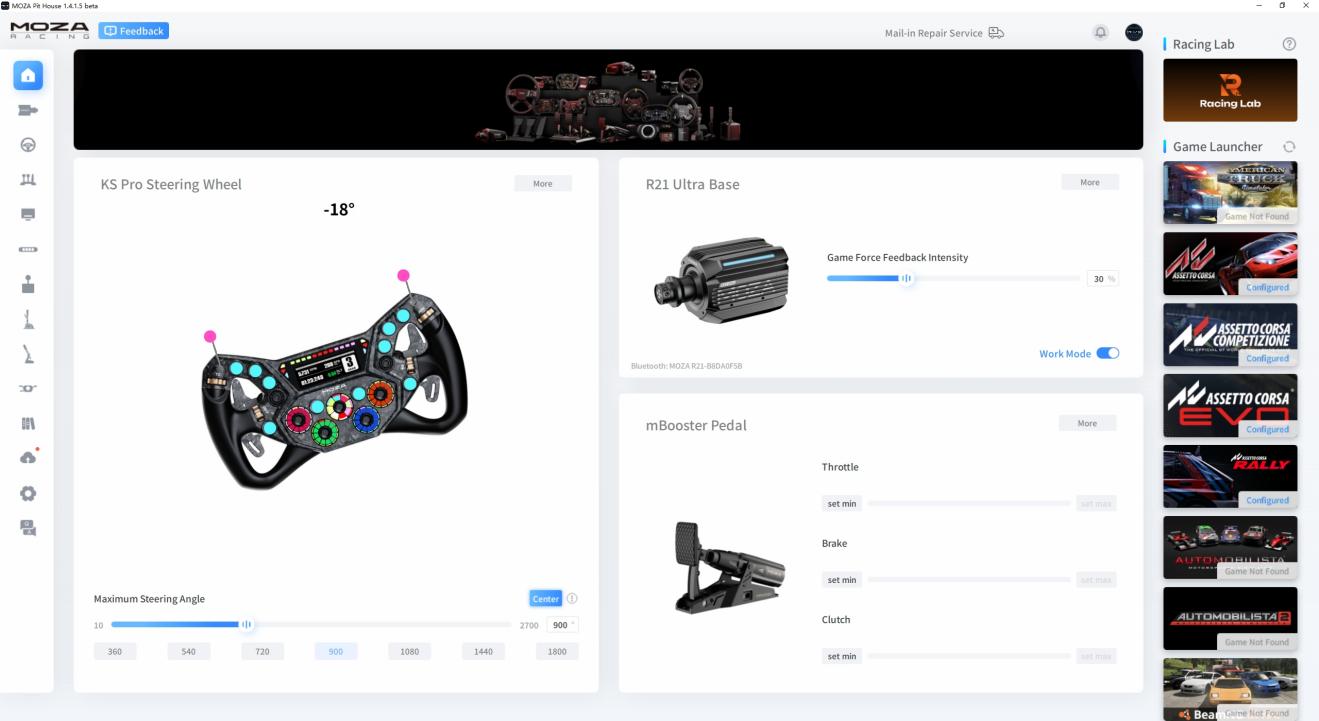
What Is Racing Lab?
Racing Lab is an AI-powered sim racing coaching tool integrated into Pit House. It is designed to help beginners make progress in practice and give experienced drivers new insights when chasing faster lap times. It presents the AI's driving, the user's own performance, and the differences between them in a clear, visual format, making it easier to understand where improvements can be made.
Racing Lab's main features include:
- View the AI's racing line, throttle, brake, steering, and gear references;
- Compare your driving with the AI in real time.
- Let the AI take direct control of the car.
- Record your practice data.
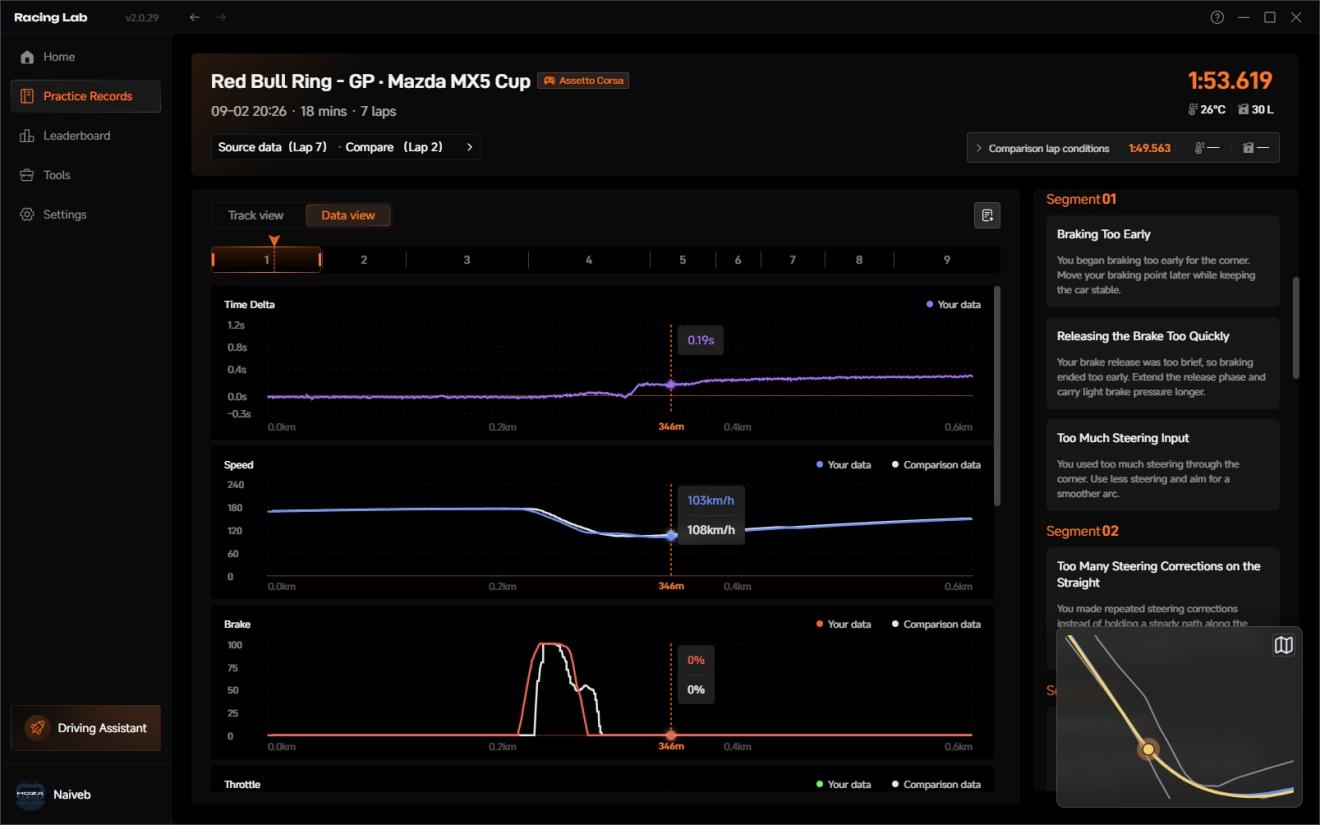
- After a practice session, compare your racing line, throttle, brake, speed, and gear data with the AI in charts.
- View driving advice provided by the AI;
- View leaderboards and take part in lap-time rankings (AI laps are excluded from rankings).
Who Is Racing Lab For?
Beginners to Sim Racing
When you are new to sim racing, you may encounter problems such as:
- Not knowing when to brake.
- Not knowing when to start turning or how much steering input to use.
- Understanding the in-game racing line but still struggling to drive well.
Through real-time control intervention, Racing Lab helps you understand more intuitively how a track should be driven.
Drivers Who Want to Improve Lap Times Systematically
If you can already complete consistent laps but want to improve your lap times further, Racing Lab can help you compare your driving in greater detail.
You can compare your own line against the AI line or against other drivers in the community, and compare throttle, brake, speed, and gear traces. Compared with practicing on feel alone, data comparison makes it much clearer where you are losing time against your target lap.
How Racing Lab Driving Assistant Works
Racing Lab Driving Assistant currently uses a self-trained reinforcement-learning AI driving model.
The AI learns how to drive specific track and vehicle combinations, then generates corresponding reference data for the racing line, throttle, brake, steering, and gear selection. During practice, users can compare their own driving with this AI reference either in real time or after the session. Because we applied only a small number of manually imposed constraints during training, and did not feed any human driving data to the AI as reference, some AI inputs may look unreasonable — but the overall lap times remain quite competitive under the same driving conditions.
AI Driving Control: Turning Driving Data into Physical Feedback
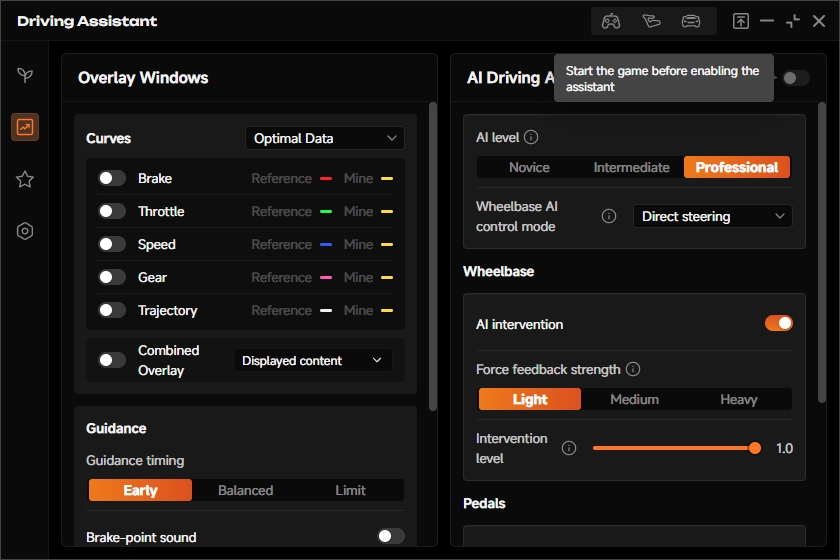
A key feature of Racing Lab is that it not only displays AI data, but can also let the AI take control of the vehicle during personal practice to demonstrate how to drive.
During AI Driving, Racing Lab can command a MOZA wheel base to turn the steering wheel and can also operate mBooster active pedals. By watching and feeling the physical hardware, users can observe how the AI brakes, turns, and accelerates out of corners, making the rhythm of driving easier to understand.
Currently Supported Core Features
Real-Time AI Driving References
Racing Lab's real-time overlay can display the AI's key driving references, including:
- Throttle.
- Brake.
- Steering.
- Gear.
- Racing line.
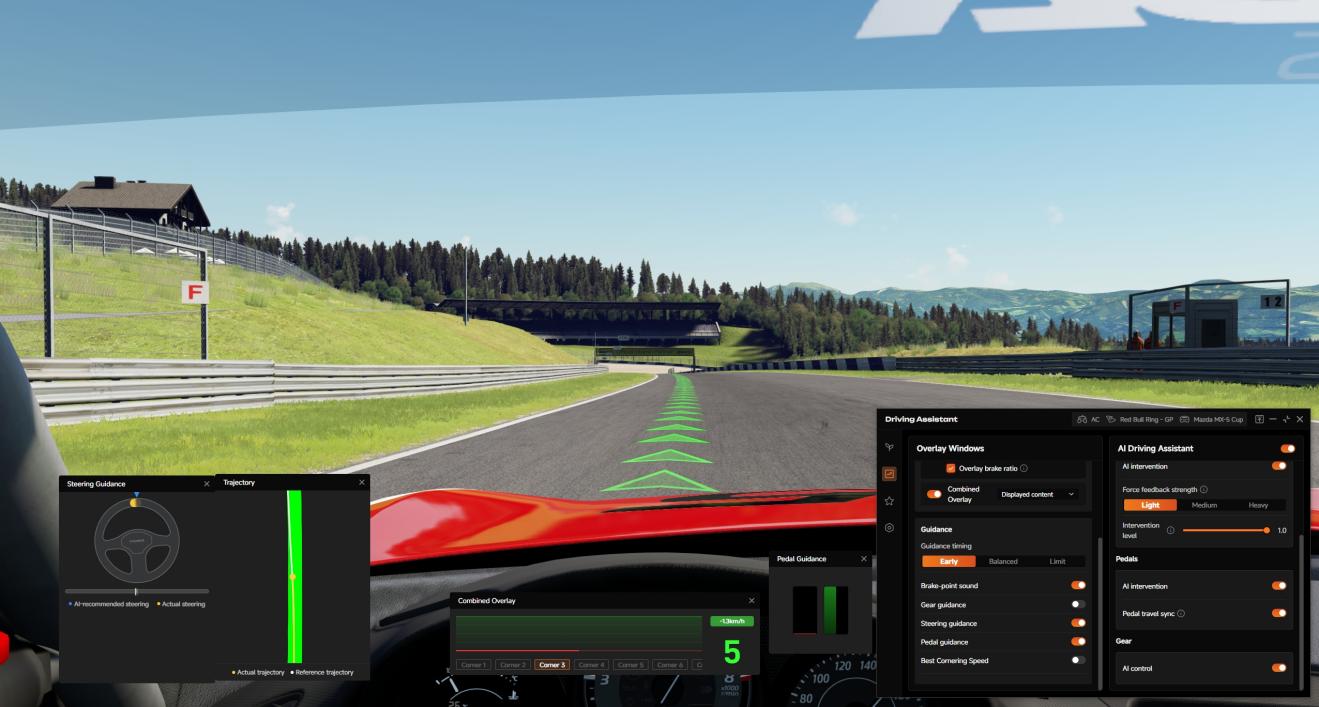
Compare the AI reference with your own inputs while driving. The visuals make the differences clear, with no telemetry expertise required.
Optimized In-Game Racing Lines for Assetto Corsa
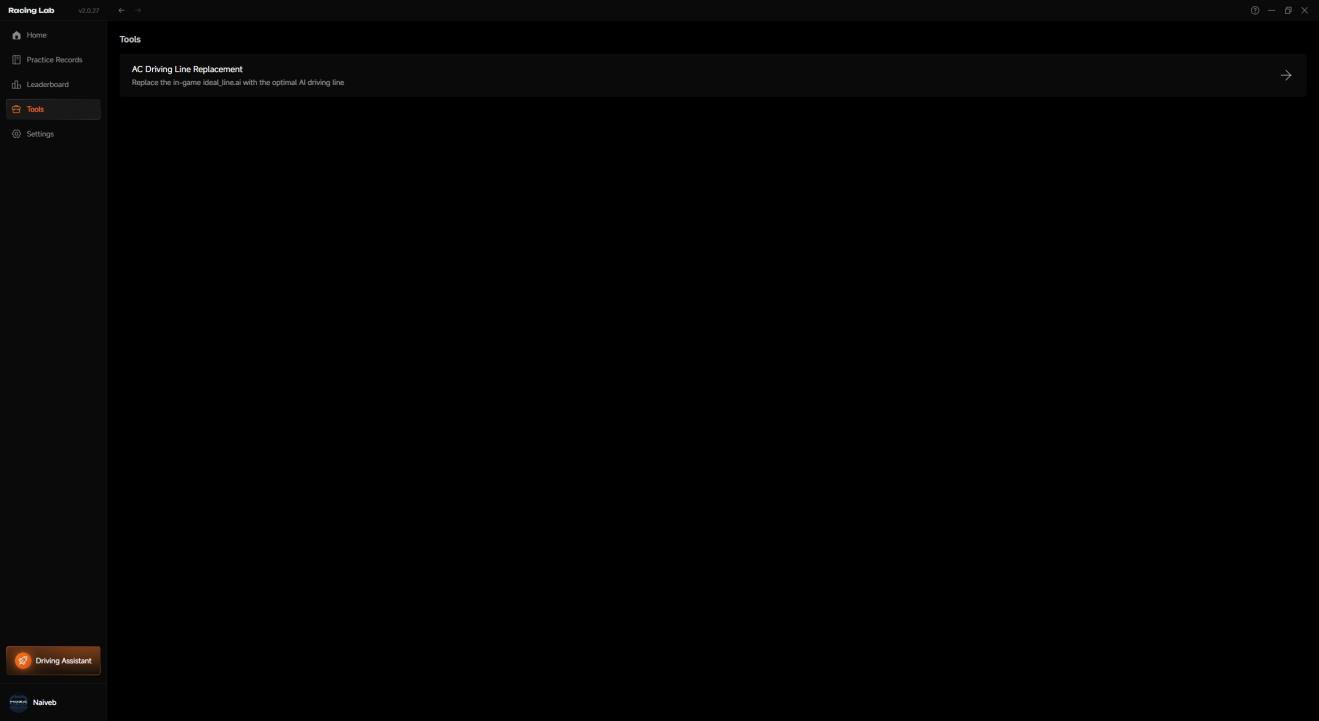
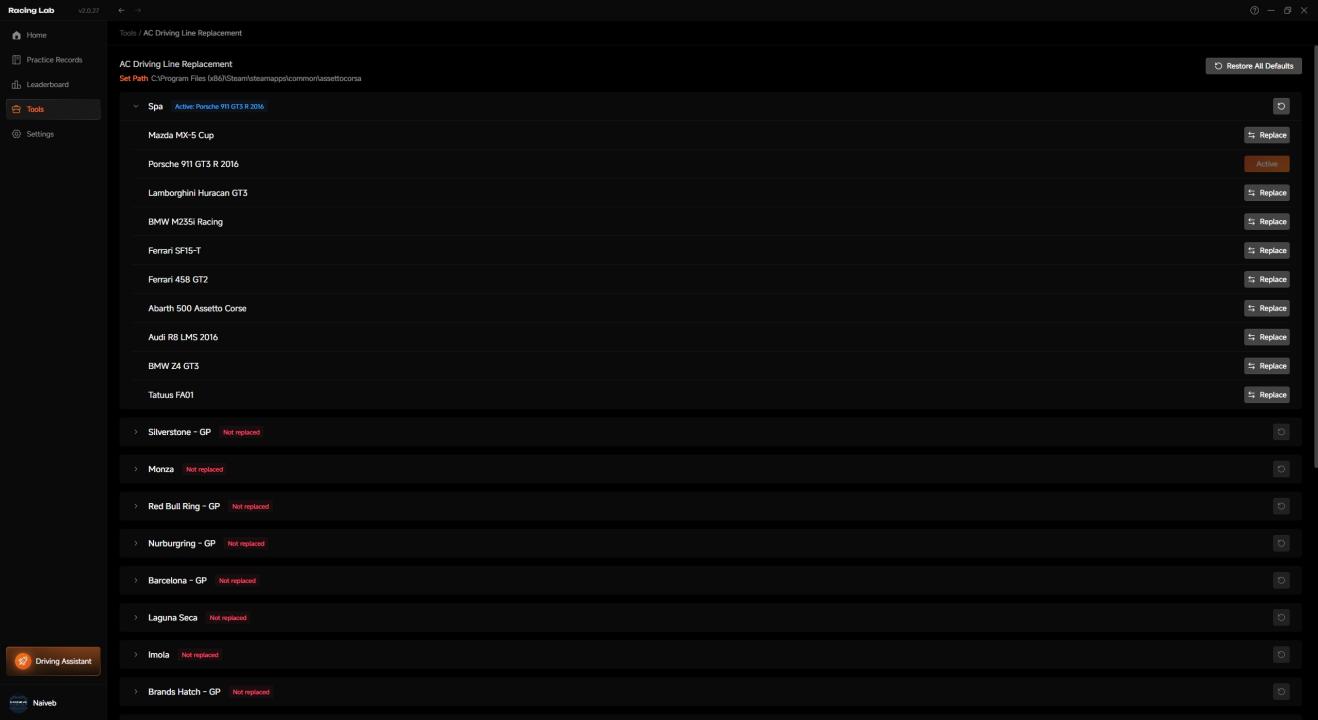
For Assetto Corsa, Racing Lab can also replace the in-game racing line file. Users can manually select a track in the application and choose an AI racing line optimized for a specific vehicle. After replacement, the AI line can be viewed in the game in a way that closely resembles the native driving aid.
The original file is backed up for one-click restoration, without affecting game integrity checks. This feature is available only for Assetto Corsa.
AI Driving
Once the hardware and firmware requirements are met, users can enable the master AI Driving switch in the upper-right corner of the AI Driving Assistant panel in Racing Lab, allowing the AI to control the vehicle during personal practice.
AI Driving supports:
- Controlling a MOZA wheel base to turn the steering wheel.
- Controlling mBooster active pedals.
- AI driving demonstrations in personal practice modes only. Note: AI Driving is disabled after connecting to a multiplayer server.
Telemetry Recording and Post-Session Comparison
Racing Lab currently supports recording the user's practice telemetry, and after the session, comparing the user's data against the AI's data in charts.
Supported Games, Tracks, and Vehicles
Two games are currently supported:
- Assetto Corsa.
- Assetto Corsa Competizione.
Both games support all existing core features, including AI driving, real-time overlay comparison, telemetry recording, leaderboards, and more.
Assetto Corsa Professional Model Supported Tracks
| No. | Track Name |
|---|---|
| 1 | Spa |
| 2 | Silverstone - GP |
| 3 | Monza |
| 4 | Red Bull Ring - GP |
| 5 | Nurburgring - GP |
| 6 | Barcelona - GP |
| 7 | Laguna Seca |
| 8 | Imola |
| 9 | Brands Hatch - GP |
| 10 | Magione |
Assetto Corsa Professional Model Supported Vehicles
| No. | Vehicle |
|---|---|
| 1 | Mazda MX-5 Cup |
| 2 | Porsche 911 GT3 R 2016 |
| 3 | Lamborghini Huracan GT3 |
| 4 | BMW M235i Racing |
| 5 | Ferrari SF15-T |
| 6 | Ferrari 458 GT2 |
| 7 | Audi R8 LMS 2016 |
| 8 | Abarth 500 Assetto Corse |
| 9 | BMW Z4 GT3 |
| 10 | Tatuus FA01 |
Assetto Corsa Novice and Intermediate Models Supported Tracks
| No. | Track Name |
|---|---|
| 1 | Spa |
| 2 | Silverstone - GP |
| 3 | Monza |
| 4 | Red Bull Ring - GP |
| 5 | Nurburgring - GP |
| 6 | Barcelona - GP |
| 7 | Laguna Seca |
| 8 | Imola |
| 9 | Brands Hatch - GP |
| 10 | Magione |
| 11 | Mugello |
| 12 | Zandvoort |
| 13 | Brands Hatch - Indy |
| 14 | Red Bull Ring - National |
| 15 | Nurburgring - Sprint |
| 16 | Nurburgring - Sprint (GT) |
| 17 | Nurburgring - GP (GT) |
| 18 | Vallelunga |
| 19 | Vallelunga - Club |
| 20 | Vallelunga - Classic |
Assetto Corsa Competizione Novice and Advanced Models Supported Tracks
| No. | Track Name |
|---|---|
| 1 | Spa |
| 2 | Silverstone - GP |
| 3 | Monza |
| 4 | Red Bull Ring - GP |
| 5 | Nurburgring - GP |
| 6 | Barcelona - GP |
| 7 | Laguna Seca |
| 8 | Imola |
| 9 | Brands Hatch - GP |
| 10 | Zolder |
Assetto Corsa Competizione Novice and Advanced Models Supported Vehicles
| No. | Vehicle |
|---|---|
| 1 | Porsche 911 II GT3 R 2019 |
| 2 | Mercedes AMG GT3 Evo 2020 |
| 3 | McLaren 720S GT3 Evo 2023 |
| 4 | Lamborghini Huracan GT3 Evo2 |
| 5 | Ferrari 488 GT3 Evo 2020 |
| 6 | BMW M4 GT3 2022 |
| 7 | Aston Martin V8 Vantage GT3 2019 |
| 8 | Porsche 718 Cayman GT4 Clubsport |
| 9 | Honda NSX GT3 Evo 2019 |
| 10 | Maserati MC20 GT2 |
If the user enters an unsupported track or vehicle, the Racing Lab title bar displays a corresponding message.

How Do I Get Started with Racing Lab?
After upgrading Pit House, the Racing Lab entry will appear in the application.
The basic setup process is as follows:
- Upgrade Pit House.
- Sign in to your Pit House account.
- Open the Racing Lab from the Pit House upper-right corner.
- Click the Settings button in the left corner.
- Download the AI data resources for the relevant game and track.
- Launch Assetto Corsa or Assetto Corsa Competizione.
- Select an officially supported track and vehicle combination.
- Start practicing.
How Do I Download AI Data Resources?
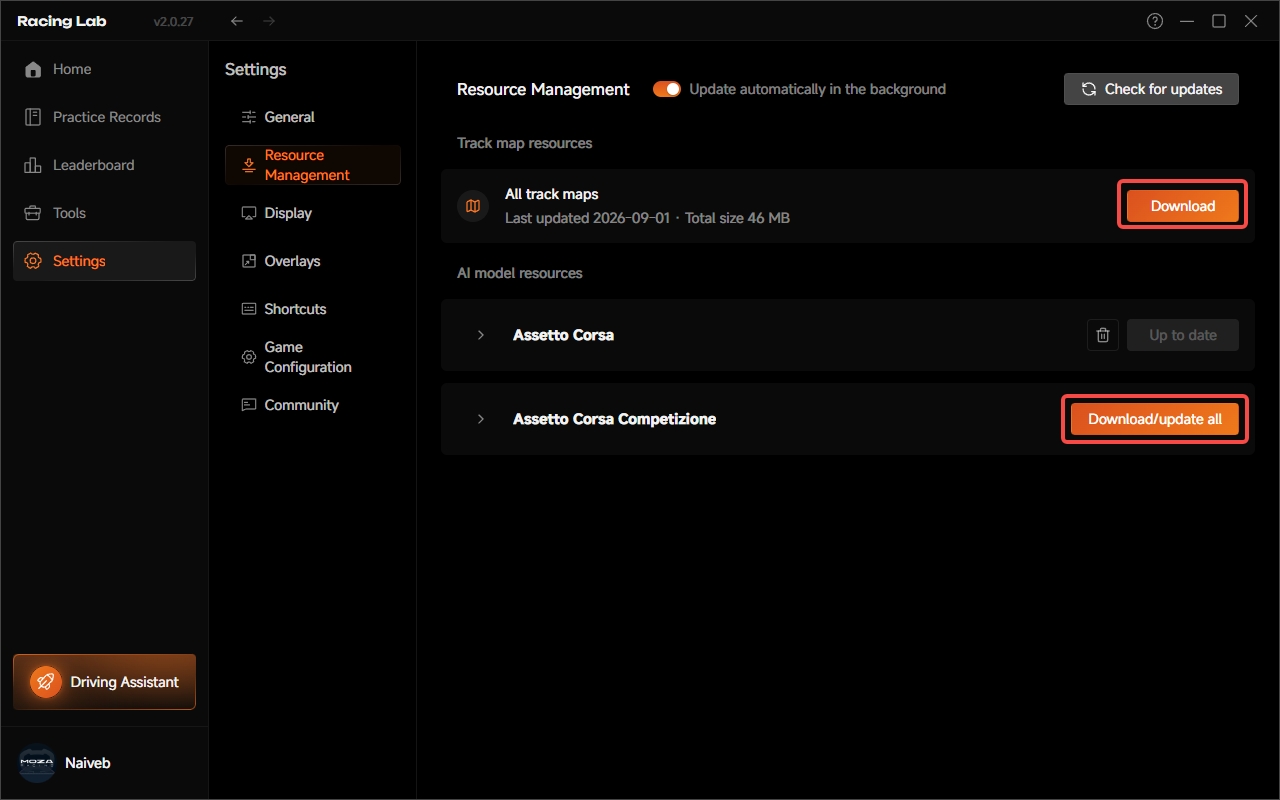
Racing Lab's AI data resources must be downloaded manually by the user.
The download entry is located on the Settings page of Racing Lab. After entering this page, click the Resource Management button to see the download buttons for game maps and AI models.
Hardware and Firmware Requirements
To use Racing Lab properly, the following requirements must be met.
Software Version
- Pit House: version 1.4.1 or later.
Firmware Versions
- Wheel base firmware: version 1.2.10 or later.
- mBooster pedal firmware: version 1.2.7 or later.
- Mechanical pedal firmware: version 1.2.5 or later.
Hardware Connections
- A MOZA wheel base must be connected.
- At least two MOZA pedals must be connected.
- The two pedals must be assigned to throttle and brake in the game.
- Mechanical pedals must be connected to the wheel base rather than directly to the PC.
- Third-party pedals are not supported.
Racing Lab requires at least two MOZA pedals because AI Driving must control both the throttle and brake. This allows users to switch more conveniently between AI control and manual driving without rebinding axes in the game.
If the hardware connection does not meet the requirements, the Racing Lab title bar displays an unsupported-hardware message.
Game Settings Requirements
AI Driving may behave abnormally if the following game settings do not match the recommended values.
Assetto Corsa
- Install the Content Manager launcher and install the latest version of the latest CSP 0.2.11 plug-in in its settings.
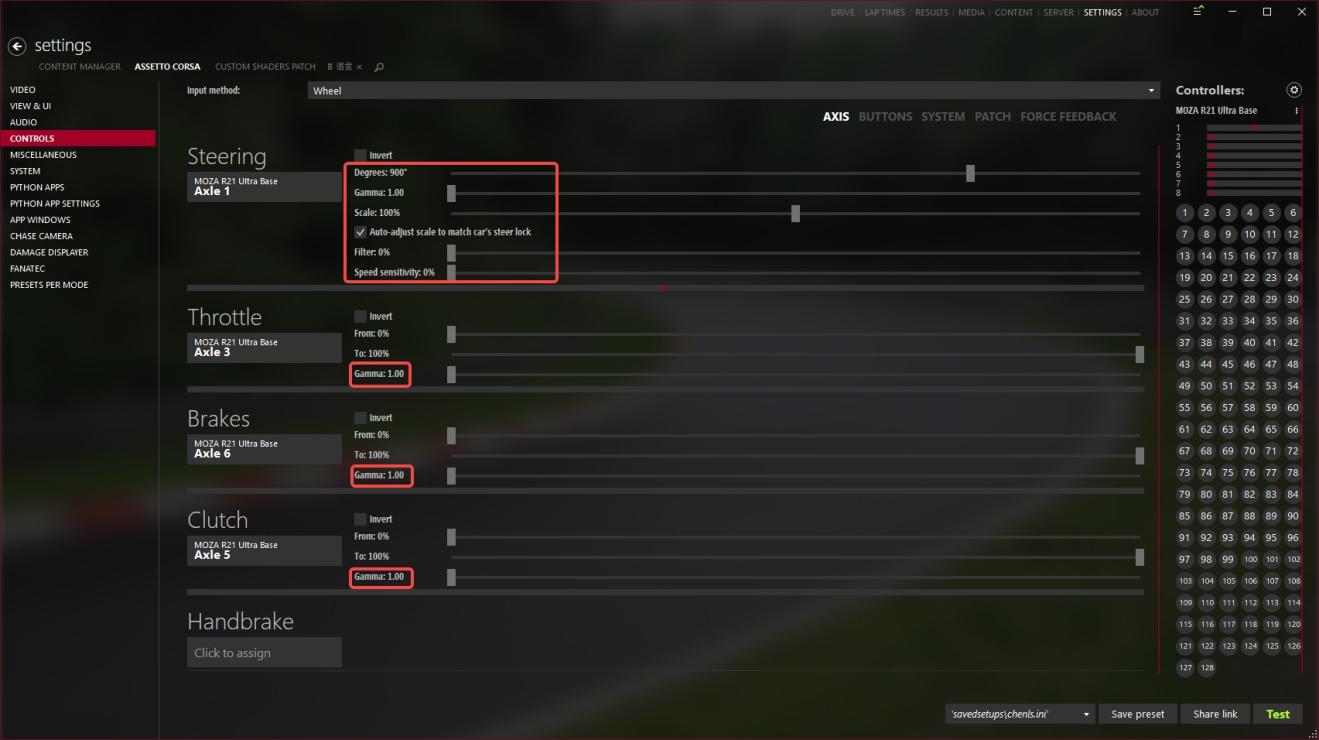
- In Content Manager's control settings, make sure the steering axis, the throttle and brake axes, and the shift up/down gears are all assigned to MOZA devices;
- In Content Manager's control settings, set the Gamma value of the steering, throttle, and brake axes to 1.
- In Content Manager's control settings, set the steering angle to 900 degrees and enable Automatically Match Vehicle Steering Lock for the steering axis.
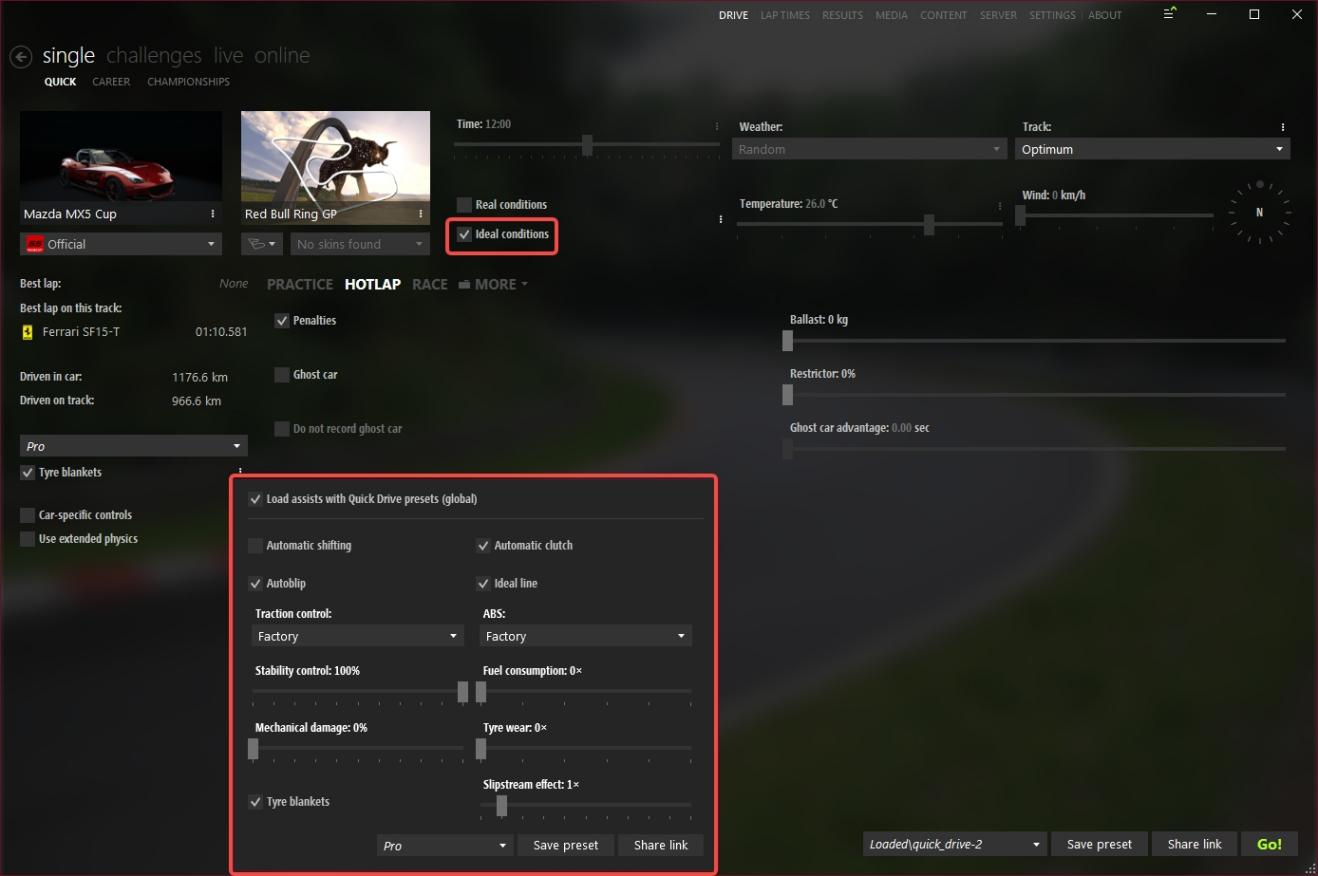
- On the main Content Manager screen, set track grip to Optimum.
- In the assists settings on the main Content Manager screen, enable tire blankets, set TC to Off, set ABS to On, and set Stability Control to 100%.
Assetto Corsa Competizione
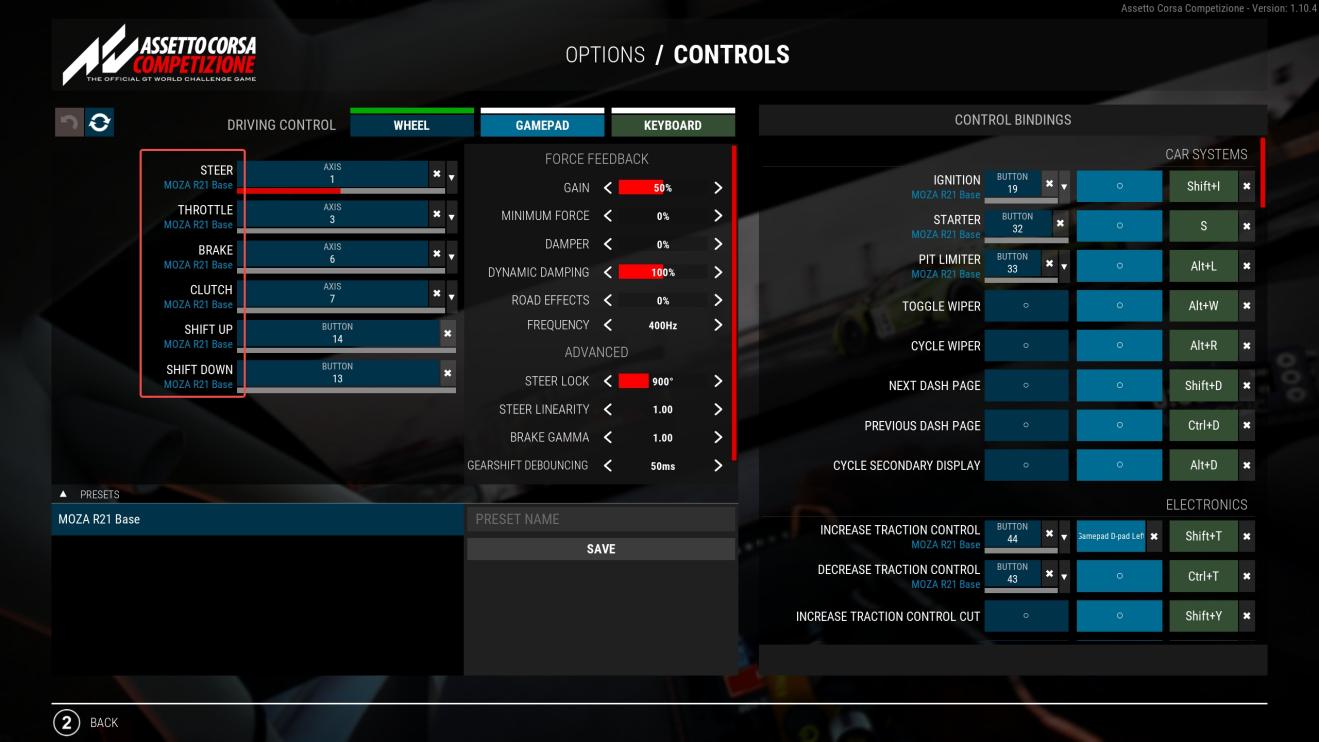
- In the control settings, make sure the steering, throttle, and brake axes are all assigned to MOZA devices.
- Set Steering Lock to 900 degrees in the control settings.
- Set Steering Linearity to 1 and Brake Gamma to 1 in the control settings.
- HOTLAP mode is recommended, so the user does not need to drive out of the pit lane manually before enabling AI Driving. The current AI cannot handle pit-lane driving.
- Set the weather to Clear or Cloudy, and set the track grip level to Optimum.
- Use the default TC and ABS settings.
- Use the Safe preset for the vehicle setup.
Game Telemetry Configuration
Under normal circumstances, Pit House configures game telemetry automatically for Assetto Corsa and Assetto Corsa Competizione.
If the data in the real-time overlay does not update as the vehicle progresses around the track, first check whether game telemetry has been configured.
To check the configuration:
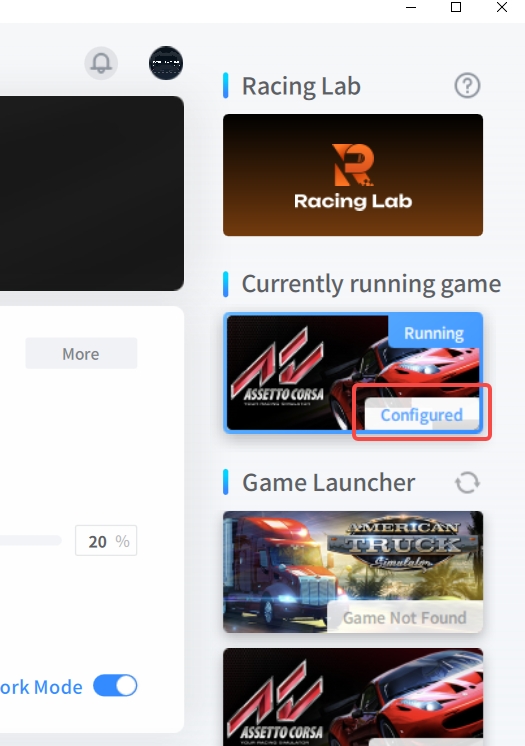
- Open the Pit House home page.
- Find Assetto Corsa or Assetto Corsa Competizione in the game panel on the right.
- Check whether the Configured badge is displayed.
- If Configured is not displayed, click Configure.
If telemetry is configured but the overlay still does not show AI data, also check:
- Whether the corresponding AI data resource has been downloaded.
- Whether the current track and vehicle combination is officially supported.
Current Limitations and Important Notes
Racing Lab is still being continuously improved. For a more stable experience, review the following limitations before use.
AI Driving Is Limited to Personal Practice
AI Driving is intended only for personal practice and demonstrations. It cannot be used in multiplayer modes.
When Racing Lab detects that the user is in a multiplayer session, AI Driving is disabled.
The AI May Not Recover from a Severe Loss of Control During Shared-Control Driving
In some shared-control scenarios — for example, when the user controls the throttle and brake while the AI controls steering, or when the user controls steering while the AI controls the throttle and brake — inputs beyond the AI's controllable range may cause the vehicle to hit a wall, spin, or travel too far beyond the track boundary.
In such cases, the AI may be unable to recover the vehicle, and the user will need to restart the session manually.
The AI Cannot Drive Out of the Pit Lane
The current version of AI Driving supports on-track driving only. It cannot drive out of the pit lane automatically and does not support route planning within the pit area.
This is because the current model is trained primarily for on-track driving, and map data for pit areas has not yet been collected.
Vehicle Setup Changes May Affect AI Performance
AI reference data is generated using officially supported tracks, vehicles, and configurations. If the user makes substantial changes to the vehicle setup or game settings, AI Driving performance and reference data may no longer match the vehicle's actual behavior.
Tracks and Vehicles Outside the Supported Range Are Currently Unavailable
If the current track or vehicle is not officially supported, the following may occur:
- AI Driving cannot be enabled.
- The overlay cannot display AI references.
- Pit House does not generate a practice record after the lap.
- The Racing Lab title bar displays a corresponding message.
Frequently Asked Questions
Which Games Does Racing Lab Support?
The Racing Lab 2.0 support Assetto Corsa and Assetto Corsa Competizione. Support for more games, tracks, and vehicles will be added later.
Which Hardware Does Racing Lab Support?
The official release is expected to support all MOZA wheel bases, all MOZA wheels and all MOZA pedals. Users must connect at least two MOZA pedals, assigned to throttle and brake.
Third-party pedals are not currently supported.
Why Are Two MOZA Pedals Required?
AI Driving must control both the throttle and brake. With two MOZA pedals, users can switch more conveniently between AI control and manual driving without rebinding axes in the game.
Can AI Driving Be Used in Multiplayer Races?
No. AI Driving is intended only for personal practice and demonstrations. Racing Lab disables AI Driving when it detects a multiplayer session.
Why Is No Data Displayed in the Overlay?
Troubleshoot the issue in the following order:
1. Confirm that Assetto Corsa or Assetto Corsa Competizione is running.
2. Confirm that the current track and vehicle are officially supported.
3. Confirm that the corresponding AI data resource has been downloaded.
4. Confirm that game telemetry has been configured.
5. Check whether the Configured badge is shown in the game panel on the right side of the Pit House home page.
6. If Configured is not displayed, click Configure.
Why Does the Overlay Show Game Telemetry but No AI Data?
Possible causes include:
1. The current track and vehicle combination is not officially supported.
2. The corresponding AI data resource has not been downloaded.
In this situation, the Racing Lab title bar usually displays a relevant message.
Why Is There No Practice Record in Pit House After I Complete a Lap?
Possible causes include:
1. The current track and vehicle combination is not officially supported.
2. The corresponding AI data resource has not been downloaded.
3. Game telemetry was not configured successfully.
If the track and vehicle combination is not officially supported, the current version cannot generate a practice record.
Can the AI Drive Out of the Pit Lane Automatically?
No. The current version of AI Driving supports on-track driving only and cannot drive out of the pit lane automatically.
Can Racing Lab Still Be Used After Changing the Vehicle Setup?
You can try, but substantial changes to the vehicle setup or game settings may reduce AI Driving performance, and the AI reference data may no longer fully match the current vehicle behavior.
Still need help?
Contact MOZA SupportFuture Roadmap
Racing Lab will continue to expand around one core goal: helping users improve their driving more effectively.
More Precise Performance Analysis
Racing Lab will continue to enhance its driving performance analysis, including more precise corner-by-corner evaluation, clearer identification of time-loss sources, brake-release smoothness analysis, steering-input analysis, and beginner training advice that is easier to understand.
The goal is to help users not only see where their driving is different, but also understand more clearly what they should practice next.
A Stronger Community Experience
Racing Lab will add community features, allowing users to compete on the same track and vehicle combinations.
We hope this gives users clearer practice goals and stronger motivation to chase faster lap times.
More Personalized Training Assistance
Racing Lab will also add training-plan features to help users practice consistently around specific tracks, vehicles, and driving issues.
Compared with individual practice records, training plans can help users build a longer-term path to improvement.
Broader Game Support
Racing Lab will continue to expand support for more games, tracks, and vehicles.
Was this article helpful?
That’s Great!
Thank you for your feedback
Sorry! We couldn't be helpful
Thank you for your feedback
Feedback sent
We appreciate your effort and will try to fix the article