Getting Started & Installation
MOZA HMA150 Haptic Motion System Support

Get Started

Product Overview
Features and specifications

User Manual
Product features and guides

Software Download
MOZA Motion Manager
Post-Sales Support

Contact Customer Support
support@mozaracing.com

Get Technical Support
Submit New Ticket

Request Repair Service
Contact customer support first
Specifications
Tutorial Video
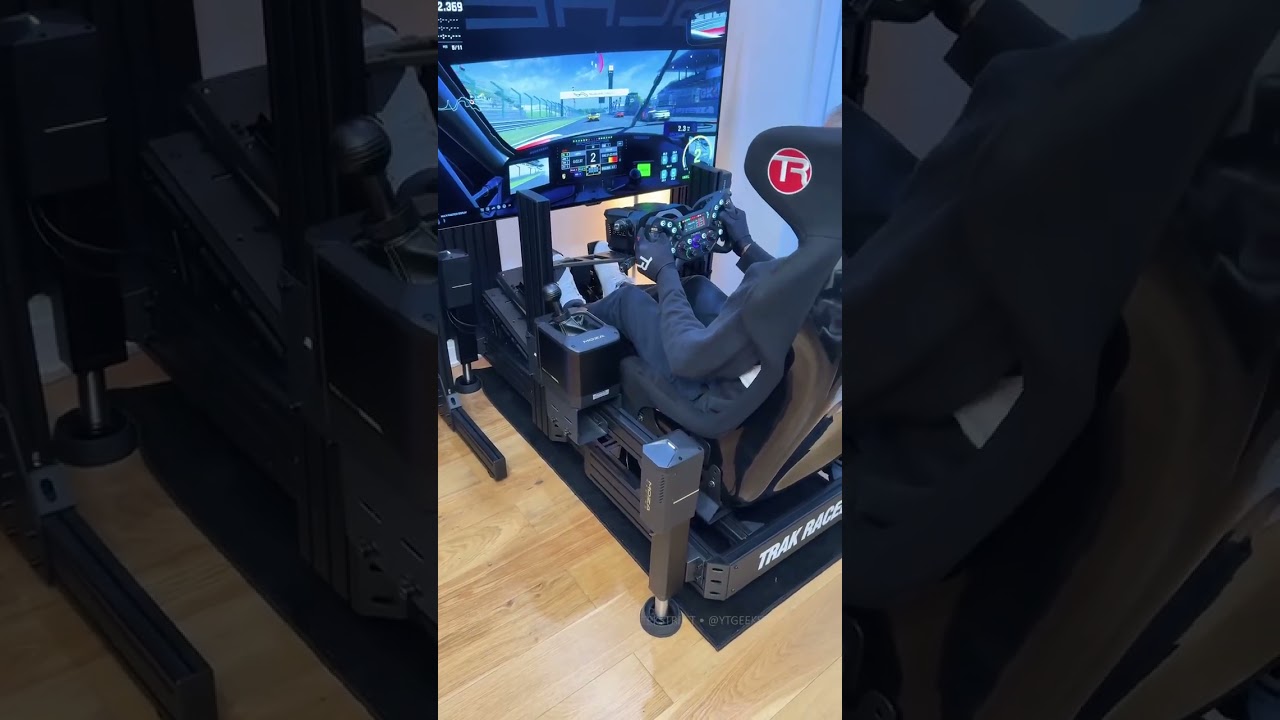
Unboxing, setting up and testing MOZA HMA150 Motion Platform
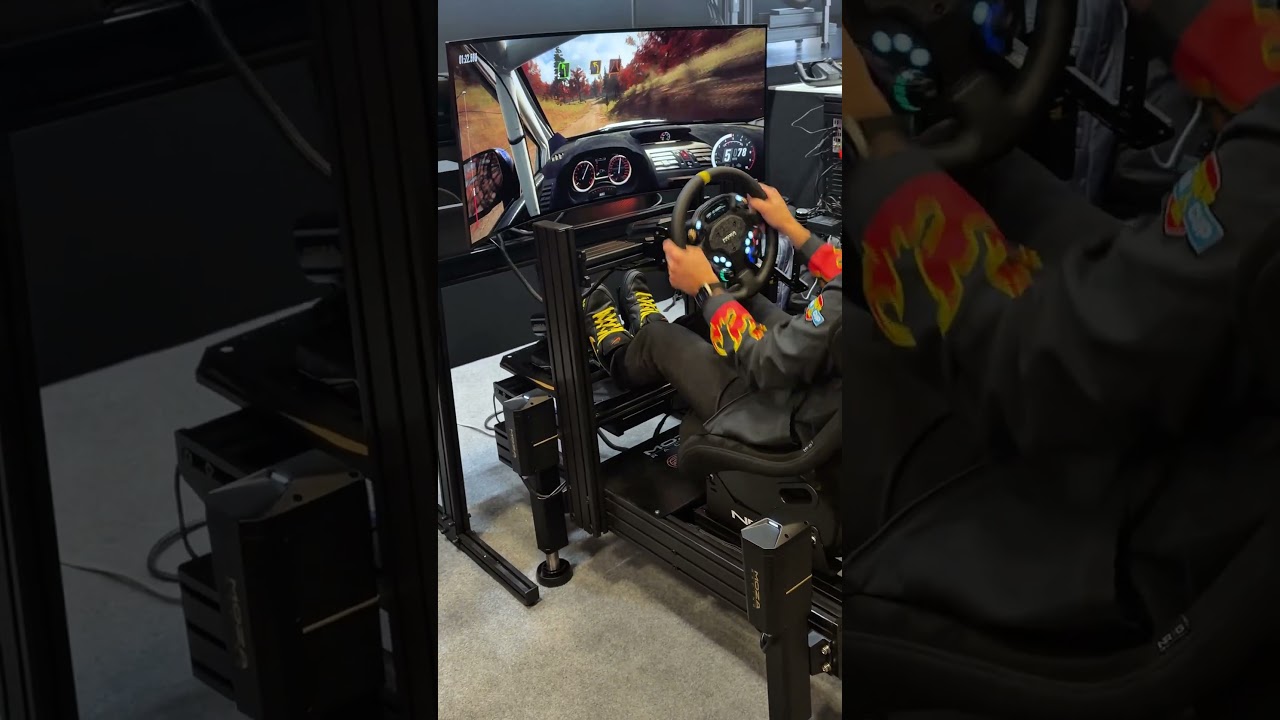
MOZA Motion Actuator in action. Experience every sensation and detail with true realism.
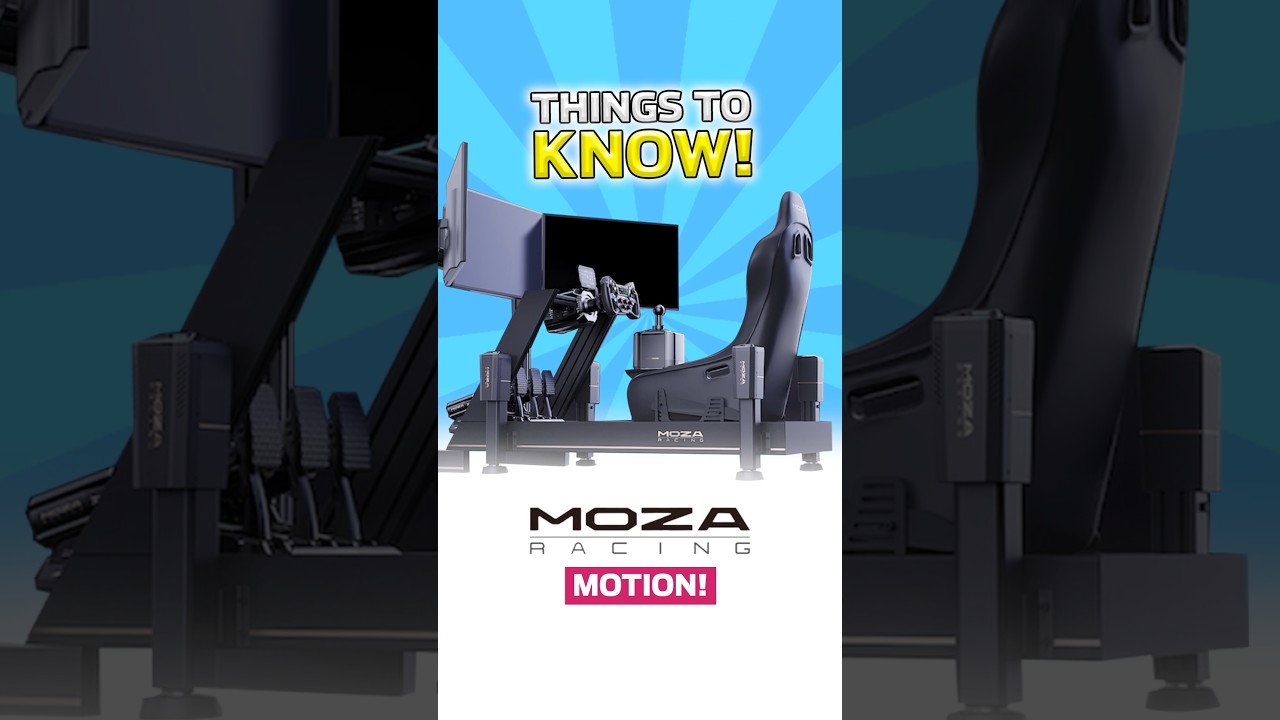
Everything to know about Moza's New Motion Platform
FAQs
Installation & Hardware
Which rigs are compatible with the HMA150 for installation? Does it support branded rigs?
It is compatible with 4080, 40120, and 40160 European-standard aluminum profiles, as well as select branded profile rigs. For 40120/40160 profile rigs with a closed central rail, an additional HMA Profile Adapter Kit is required.
What are the requirements for the rig used to install the HMA150?
The rig must be stable and firmly constructed. Before installation, ensure all connection points on the rig are secure, and we recommend decoupling the monitor mount from the rig. The rig must meet the required length and width.
What are the lengths of the included cables?
The actuator cable is 1.4 meters long, and the USB cable for the main control box is 2.8 meters long.
Can the motion platform be used on an uneven floor?
No, it cannot. The motion platform must be used on a level floor.
Do the actuator power cables and RJ11 cables need to be matched to specific numbered ports when connecting?
No, they do not. Simply connect them to the corresponding ports.
The cables are not long enough or routing is difficult. What should I do?
Do not stretch, pinch, or run cables through the actuator’s motion range. Prioritize repositioning the main control box and power supply.
If this still does not meet your needs, please contact after-sales support to confirm available official extension or replacement cables. Unverified extension solutions are not recommended.
How can I prevent actuator cables from being pulled or damaged by pinching?
Please secure cables with cable ties and cable clips, and leave sufficient slack across the full stroke of the actuator. Do not run cables through moving parts, threaded edges, or areas that are easily stepped on. Perform a low-stroke test first after installation is complete.
Motion Effects & Tuning
Why does the same preset feel very different in terms of motion across different games?
The range of telemetry data output varies between different games, vehicles, and tracks, so the motion amplitude will differ under the same parameters. It is recommended to save separate presets by game and vehicle, and make fine adjustments using maximum usable stroke, individual effect intensity, and smoothness.
Why does the same preset have very different motion intensity across different vehicle models?
Different vehicle models have different physics, suspension, acceleration, and telemetry output in the game. For example, the dynamic range of formula cars, GT cars, and prototype cars can differ significantly. It is recommended to save separate presets for vehicles with large differences, or quickly adjust the overall intensity via the floating tuning panel.
What value should I set for the maximum usable stroke?
It is recommended to start with a low value, and gradually increase it after confirming there is no interference between the cockpit, cables, monitor, and surrounding equipment. Full-stroke motion is very intense, so setting it directly to 100% for first use is not recommended.
The overall motion is too strong. Which parameter should I adjust first?
Prioritize lowering the "Maximum Usable Stroke" on the homepage, then adjust the intensity of individual motion effects separately. Change only one parameter at a time and test briefly, as this makes it easier to identify the source of changes.
The default presets/effects are too strong. How should I set it up for first use?
It is recommended to start with a milder official preset, set maximum usable stroke, motion intensity, and haptic intensity to low levels, and gradually increase them after confirming correct device installation and motion direction.
What is the difference between Pitch and Acceleration Pitch?
Pitch mainly reflects track slope and changes in vehicle attitude; Acceleration Pitch mainly reflects longitudinal G-force generated by acceleration, deceleration, and braking. Both can be adjusted independently, and either one can be turned off.
What is the difference between Roll and Acceleration Roll?
Roll mainly reflects road surface tilt and vehicle attitude; Acceleration Roll mainly reflects lateral G-force generated by cornering. In sim racing use, you can lower or turn off Roll as needed to highlight lateral G-force effects.
After turning off the "Gear Shift" effect in haptic feedback, why does the platform still move when shifting?
The acceleration output by the game also changes at the moment of shifting, so Acceleration Pitch may still be triggered. Please enable the "Gear Shift Effect Separation" function to filter out motion caused by gear shifts in Acceleration Pitch. Also, first confirm that the main control box firmware and software are updated to the version that supports this feature.
The gear shift effect is too strong. How should I adjust it?
Please first try lowering Gear Shift intensity and enabling the "Gear Shift Effect Separation" effect. If it is still noticeable, you can appropriately reduce Acceleration Pitch intensity or increase smoothness.
It is recommended to adjust item by item, and avoid modifying multiple parameters significantly at the same time.
Why is the Pitch amplitude different during acceleration and braking?
The algorithm uses a consistent mapping logic for all supported games, but game telemetry, vehicle performance, track slope, and vehicle attitude will affect the final amplitude. It is recommended to test different vehicles and tracks separately, and save independent presets for each game.
Why do curbs and vertical bumps feel very weak?
Please first increase the intensity of the Road Detail effect, then try adjusting the Heave effect, and finally check if the maximum usable stroke and haptic feedback intensity on the homepage are set too low.
Telemetry data varies greatly across different games and vehicles. It is recommended to use the built-in test function to confirm the actuator itself functions normally, then adjust presets for the specific game and vehicle model.
What should I do if haptic effects such as ABS and TC are not obvious?
Please first check that the "Haptic Feedback Intensity" on the homepage and the intensity settings of the corresponding individual effects are reasonable. Also confirm whether the current game and vehicle provide corresponding telemetry; the software will disable or prompt for unsupported haptic items.
Can haptic effects and motion effects be enabled at the same time?
Yes. Motion effects are responsible for platform attitude and displacement, while haptic effects handle high-frequency feedback such as road surface texture, engine vibration, gear shifts, and ABS. The two can be enabled simultaneously.
Preset Management
Why does the preset library only show presets for some of the installed games?
The preset library displays existing presets and their bound games, which does not mean only these games are supported. You can load an existing preset, adjust and edit it manually, then select "Save As" to bind it to other games. Official presets will be continuously updated and expanded over time.
How do I create a preset for a game with no official preset available?
Go select and load an existing preset to enter edit mode. After making adjustments, click "Save As", edit the file name and other information, select the game you want to bind it to, and save. You can also save it as a universal preset not bound to any game.
Can one preset be bound to multiple games at the same time?
Currently, each preset can only be bound to one specified game, or not bound to any game. If multiple games require the same parameters, you can duplicate the preset via "Save As", bind them separately, and save.
How do I make a specified preset load automatically when a game launches?
When saving or saving a preset as a new file, set it as the default preset for the current game. After that, MOZA Motion Manager will automatically load the preset when the game launches.
AI Motion
What are the PC requirements for AI Motion?
AI Motion requires running the AI model locally in real time, so it has certain PC requirements:
- Operating system: Windows 10 / Windows 11, 64-bit
- Graphics card: NVIDIA discrete graphics card
- Minimum graphics card: GeForce RTX 4060, 8 GB VRAM
- Graphics driver: install NVIDIA official Game Ready / Studio driver 572.60 or later, and ensure the driver works properly
- System memory: 8 GB or more
- Other limitations: AMD graphics cards, Intel integrated graphics, and Intel discrete graphics are not currently supported
If the PC does not meet these requirements, MOZA Motion Manager may still detect the game running, but the AI model may fail to start, so AI Motion cannot be used normally.
Can AI Motion automatically support all games?
No. Each game requires corresponding model and event effect adaptation.
New supported games will be added continuously, but for the current specific support range, please refer to MOZA Motion Manager.
Why do I need to download additional content on first use?
AI Motion requires:
1. The common environment required for AI to run.
2. The AI model for the current game.
3. The corresponding event and effect resources.
After completing these, the AI can properly understand the game and trigger haptic feedback.
What information do I need to provide when contacting MOZA about an issue?
If you encounter an issue that can be reliably reproduced, submit an error report via Motion Manager immediately after reproducing it. In the bottom-left corner of the interface: "Settings" → Error Report → complete the required fields → submit the error report → save the error report ID.
When providing feedback, also include:
- Game name
- Game scenario
- The specific event where the issue occurred
- Time of occurrence
- Game screen recording
- Current game settings
- MOZA Motion Manager version
- Error report ID
This information helps determine whether the issue is from event recognition, game compatibility, running performance, or Motion output.
Troubleshooting
What should I do if MOZA Motion Manager fails to detect the connected device?
Please follow the steps below to troubleshoot:
1. Confirm that the main control box is connected to the actuators and PC, the actuators are connected to the power supply and powered on, and all cables are firmly plugged in.
2. Connect the main control box USB cable directly to a USB port on the PC motherboard; do not use a USB Hub temporarily.
3. Replace the USB port or USB cable, then relaunch the software.
4. Check whether Windows shows a USB device connection prompt.
5. If the device is still not detected, reproduce the issue, submit an error report in the software, and provide the report ID.
Why does the platform fail the startup self-test and prompt that the cockpit is not level?
Please confirm that all four actuators are installed at consistent heights, that the cockpit is not blocked by foreign objects, and that each actuator and port position is configured correctly. Remove any obvious unbalanced load, then reconfigure the ports and run the self-test again.
If a certain actuator does not move, try swapping ports to test and contact after-sales support.
After port configuration, why are the platform motion directions reversed for steering, acceleration, and braking?
Please update MOZA Motion Manager and device firmware, then reconfigure the ports.
If the direction is still reversed on the latest version, verify that the actual installation position of each actuator matches the configuration selection in the software.
Safety & Maintenance
Do the actuators require maintenance? How often should maintenance be performed?
The recommended maintenance interval and grease specification are listed in the user manual.
What happens when I press the E-Stop switch?
When pressed, the platform will immediately stop all motion and maintain its current position, while the software will disable all related operations and display that the system is in emergency stop state.
After twisting to release the E-Stop, the platform will exit the emergency stop state and lower back to the bottom. You can click "Start" again in the software to resume use.
Where should the E-Stop switch be connected?
The E-Stop switch should be connected to the dedicated E-Stop port on the HMA150 main control box, and will only be used to control the motion platform in this case.
Connecting to the E-Stop port on the steering wheel base or other devices will not enable emergency stop control of the motion platform.
Why does the platform lower automatically when turned off?
It is normal operating logic for the platform to return to the bottom after clicking "Close" in the software.
Before closing, please ensure there are no feet, cables, or other objects under the platform, and keep personnel away from the motion range.
Will the platform crash down directly during a sudden power outage?
The device has a built-in power-off slow descent protection function, so it will not crash down directly during a sudden power failure.
However, performance may vary at different operating stages, so power failure should not be used as a normal stop method. Ensure no personnel or objects are under the platform during use, and turn off the power only after stopping the platform via the software.
Can I unplug the power directly while the platform is moving? How do I properly shut down the motion platform?
We do not recommend doing so.
Please first stop the platform by clicking "Close" in MOZA Motion Manager, wait for the actuators to lower safely to the bottom, then turn off the power. Use the E-Stop switch only in emergency situations.
Is it normal for the power supply casing to get warm after long-term operation?
Slight warmth during normal operation is usually normal, but it should not become hot to the touch, produce burning smells, smoke, make abnormal whistling noises, or experience frequent power cuts.
If any of the above abnormalities occur, stop using it immediately and contact after-sales support.
Can I add grease to the actuator by myself?
Please only perform maintenance following the model, location, and steps recommended in the product user manual. Do not use unspecified lubricants, and do not disassemble the actuator if you are uncertain. For abnormal noises, it is recommended to contact after-sales support for diagnosis first.
Software & Compatibility
Do all listed supported games provide full motion and haptic effects?
Not necessarily. The telemetry information provided by different games varies, so the scope of supported motion and haptic effects will also differ.
The software will enable, disable, or prompt for related effects based on the actual capabilities of the game.
Can MOZA Motion Manager share game telemetry with other third-party software?
Yes, Motion Manager supports telemetry sharing via UDP port forwarding.
MOZA Motion Manager and MOZA Pit House are natively compatible. No forwarding is required; simply configure the same port, and the two programs will automatically share telemetry data.
Sharing with third-party software (such as Simhub, SimTools, etc.) can be achieved by configuring the UDP forwarding port. Please note that forwarding introduces inherent latency. To ensure low latency for the motion platform, it is recommended to set MOZA Motion Manager as the primary receiving port and forward telemetry to other software.
How do I manually submit an error report?
In the bottom-left corner of the MOZA Motion Manager interface, go to Settings → Error Report, fill in the required fields, and click "Send Report" to submit.
When contacting after-sales support, please provide the error report ID along with footage of the issue occurrence and other relevant materials after submission.
Was this article helpful?
That’s Great!
Thank you for your feedback
Sorry! We couldn't be helpful
Thank you for your feedback
Feedback sent
We appreciate your effort and will try to fix the article