Flight Bases
AB9 Force Feedback Base | Complete Guide
Complete support guide for the MOZA AB9 Force Feedback Base: specifications, setup, calibration and troubleshooting.
Specifications
12Nm Dual-Servo Force Feedback
The AB9 is equipped with dual servo motors delivering 12Nm peak torque, powered by the MOZA Control Loading System (MCLS). The segmented winding design of the servo motors combined with MOZA's proprietary optimization algorithm delivers exceptionally low cogging torque and torque ripple for smooth, quiet operation. The MCLS force feedback system excels at reproducing subtle effects such as runway texture, buffet, and high-frequency vibrations.
Setup & Calibration
- Mount the AB9 securely on your desktop mount or rig
- Connect the power adapter and USB cable to your PC
- Power on the base — Windows will detect it
- In MOZA Cockpit, select the AB9 and run Calibration
- Move the stick through the full range of motion on all axes when prompted
Calibration Note: If your stick hits the edge of the desktop mount during calibration, the detected range will be limited. Ensure the stick has unobstructed travel in all directions during calibration. If full travel is not possible, the calibration will still function but the axis range will be constrained.
Soft Limits
The AB9 supports configurable soft limits in MOZA Cockpit. Soft limits allow you to restrict the maximum travel of the stick electronically, which is useful for:
- Simulating aircraft with limited control surface deflection
- Preventing the stick from hitting nearby objects or monitor arms
- Reducing fatigue during long flights by limiting the active throw range
Z-Axis Module
The MOZA Z-Axis Module adds twist/rudder functionality between the AB9 base and your grip. After installing the Z-Axis module, run calibration in MOZA Cockpit to register the additional axis. The Z-Axis module is compatible with MOZA grips and certain third-party grips — if a third-party grip is not recognized, check the connector pinout alignment.
Tutorial Video
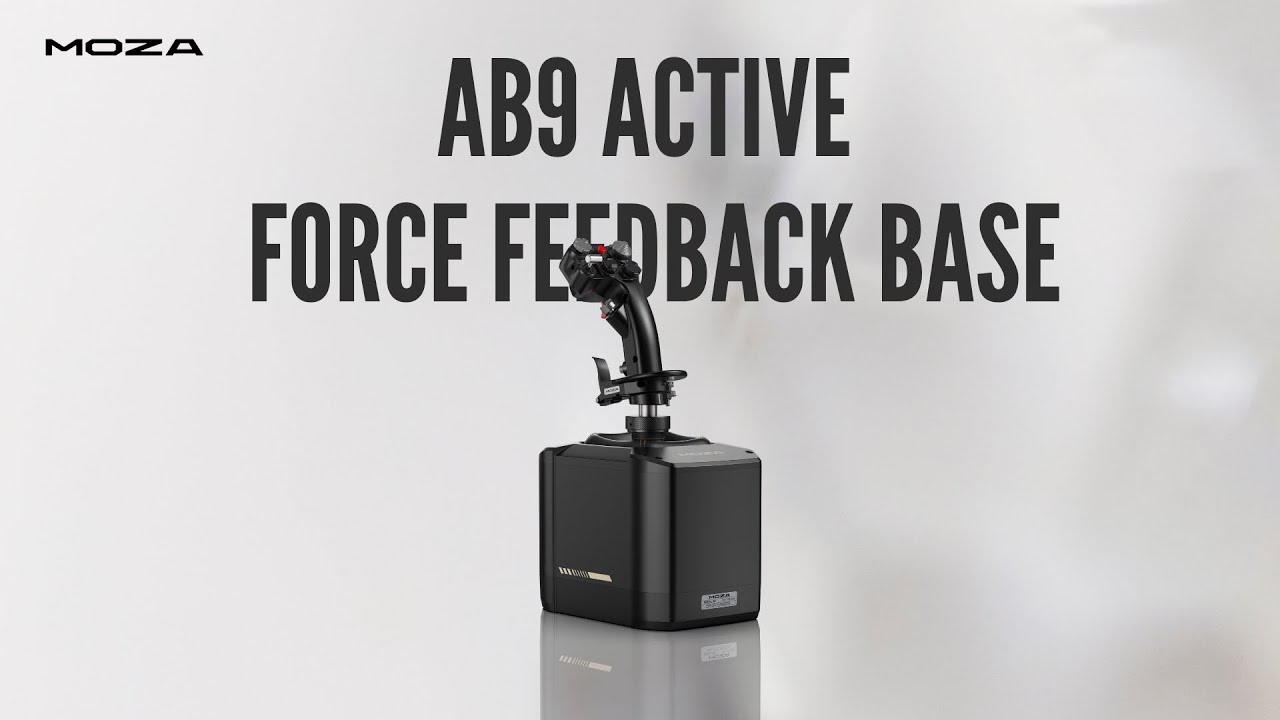
AB9 Force Feedback Base Introduction
Frequently Asked Questions
How do I adjust the stick center position on the AB9?
Run the calibration routine in MOZA Cockpit. If the center position still drifts after calibration, check for mechanical interference (mounting bolts too tight, cable tension). If the issue persists, reset the base to factory settings and recalibrate.
The stick position jumps to 60% in-game after calibrating
This can occur if the calibration did not capture the full axis range. Recalibrate, ensuring you move the stick fully and smoothly to all extremes. Also check that no game curves or sensitivity settings are artificially offsetting the center. In MOZA Cockpit, verify the axis position indicator shows the stick centered at the physical center.
Can I use two AB9 bases simultaneously on one PC?
Yes. Connect each base to a separate USB port. MOZA Cockpit will recognize each as an independent device. This is useful for dual-control cockpit setups (pilot and co-pilot stations).
Does the AB9 support force sensing mode?
Yes. In MOZA Cockpit, you can configure the AB9 for force sensing operation, where stick input is determined by the force applied rather than physical displacement. This is ideal for simulating aircraft like the F-16 with force-sensing side-sticks.
What is the difference between the AB6 and AB9?
The AB6 uses dual servo motors (4.4 N·m continuous roll axis, 6 N·m peak combined) and features 8 integrated RGB buttons and 2 sliders on the base. The AB9 uses dual servo motors for ultra-smooth, silent operation with no gear sensation. The AB9 supports the Z-Axis module and AY210 yoke integration. Choose the AB6 if you want integrated base controls at a more affordable price; choose the AB9 if you prioritize the smoothest force feedback and expansion flexibility.
Was this article helpful?
That’s Great!
Thank you for your feedback
Sorry! We couldn't be helpful
Thank you for your feedback
Feedback sent
We appreciate your effort and will try to fix the article